Saving, presenting and sharing presentations
1 - Saving your presentation
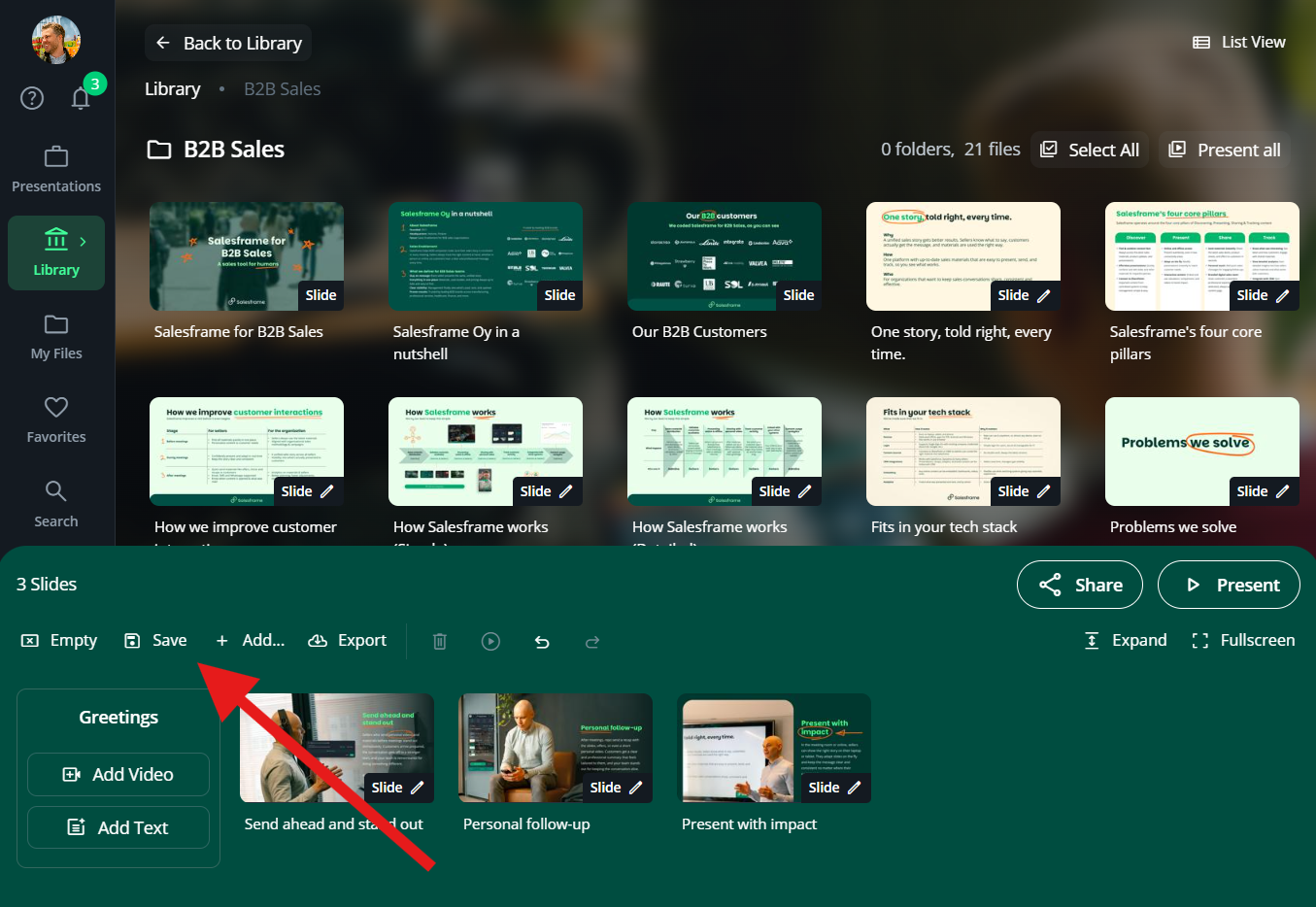
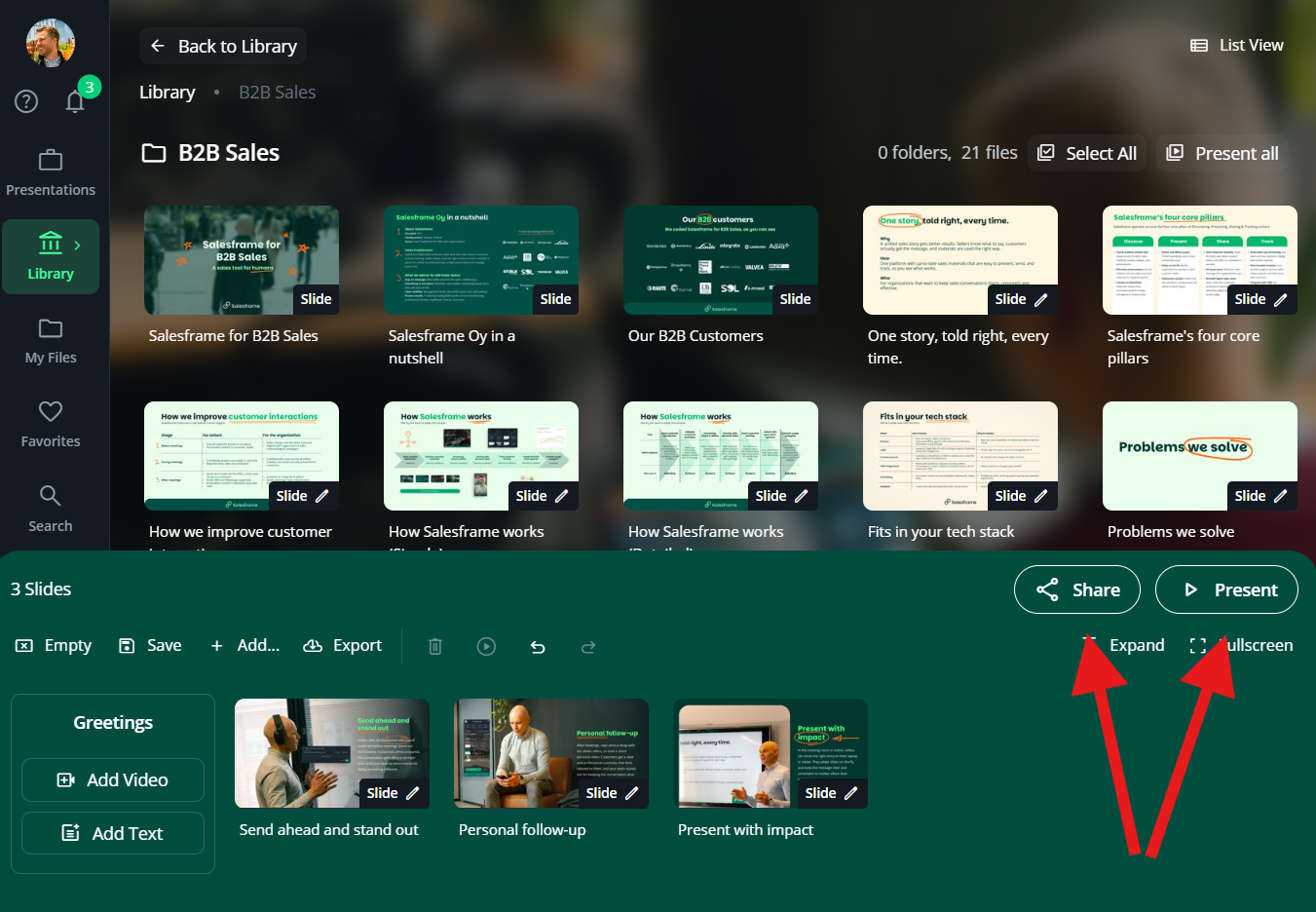
In the presentation deck at the bottom, click Save.
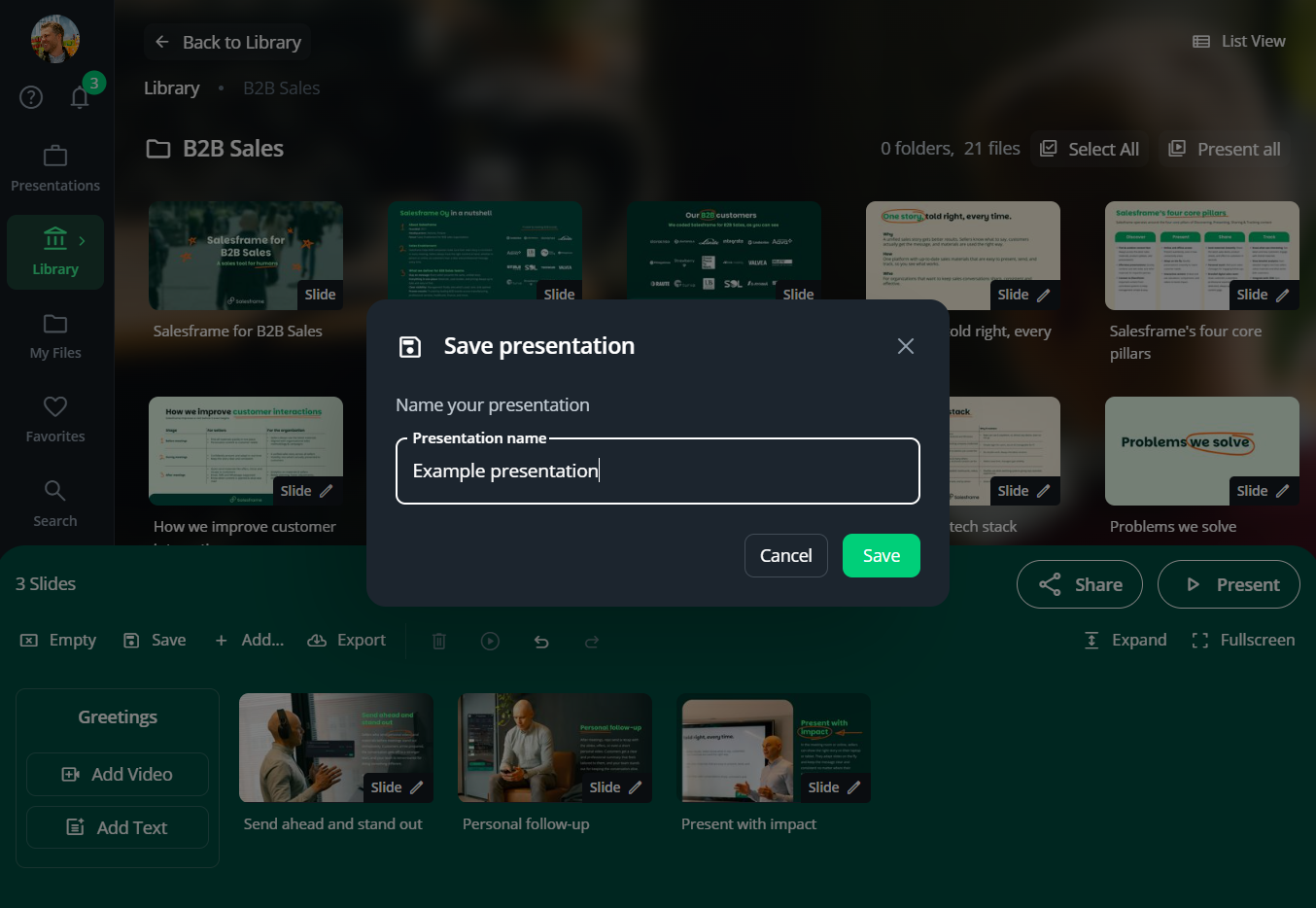
Give your presentation a clear name so you recognise it later, for example Q2 review – Store X.
Confirm to save.
Your saved decks are available under Presentations in the left sidebar. From there you can:
Open a presentation to use it again
Duplicate a presentation and tweak the copy for a new customer or meeting, so you do not overwrite the original
Many users like to prepare key decks in advance and then duplicate them when a similar meeting comes up.
2 - Presenting in a meeting
When you are ready to use the deck with a customer:
Open the presentation or build your deck as usual
Click Present in the bottom toolbar
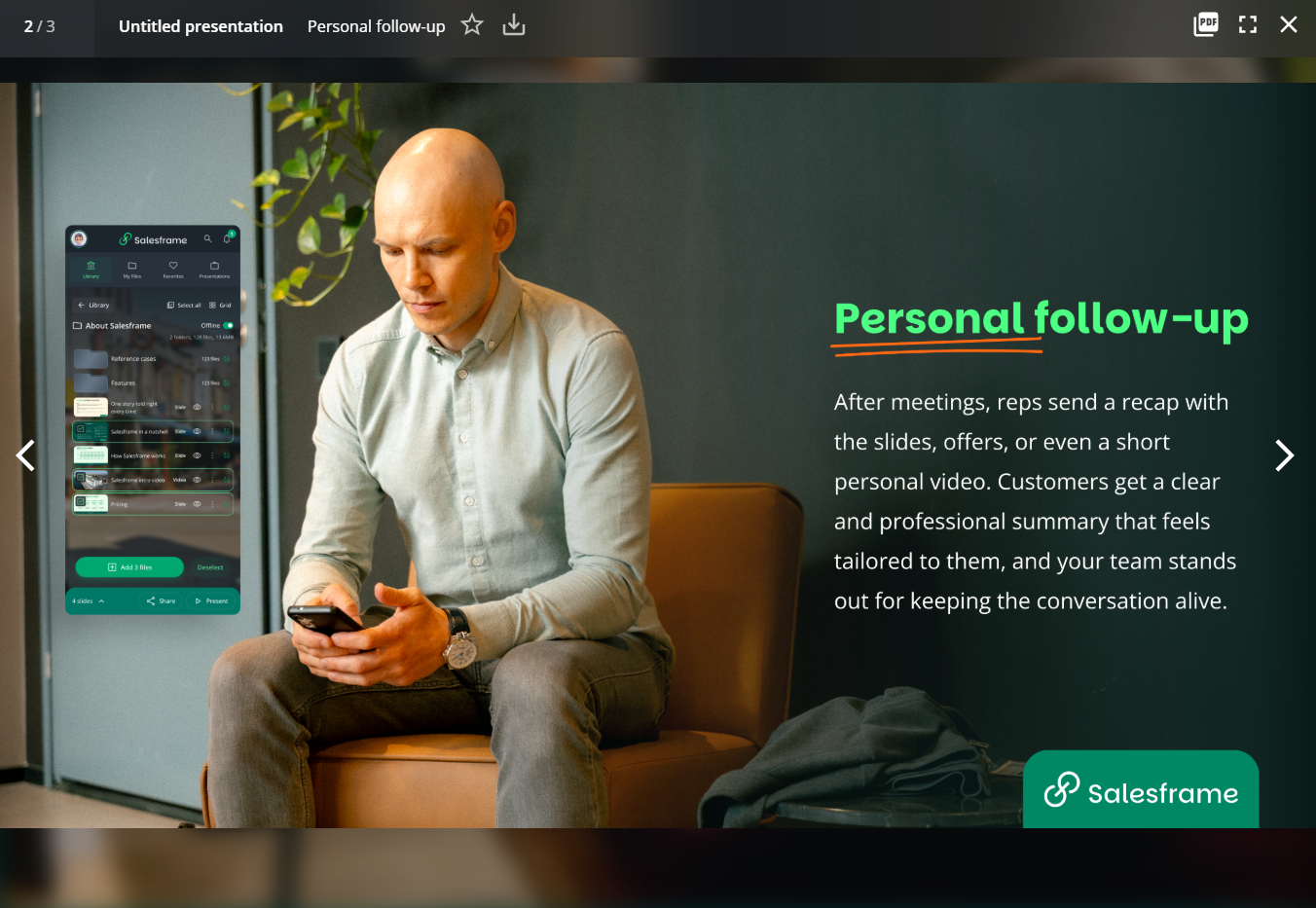
Salesframe opens a clean presentation view with simple controls:
Left and right arrows to move between slides
Fullscreen to hide everything else on your screen
Download as PDF if you want a copy of what you are showing
X (close) to exit back to editing the deck
You can move forward and backward at your own pace and jump to another slide when the discussion changes.
3 - Sharing the presentation with a customer
After the meeting you can send the same material to your customer.
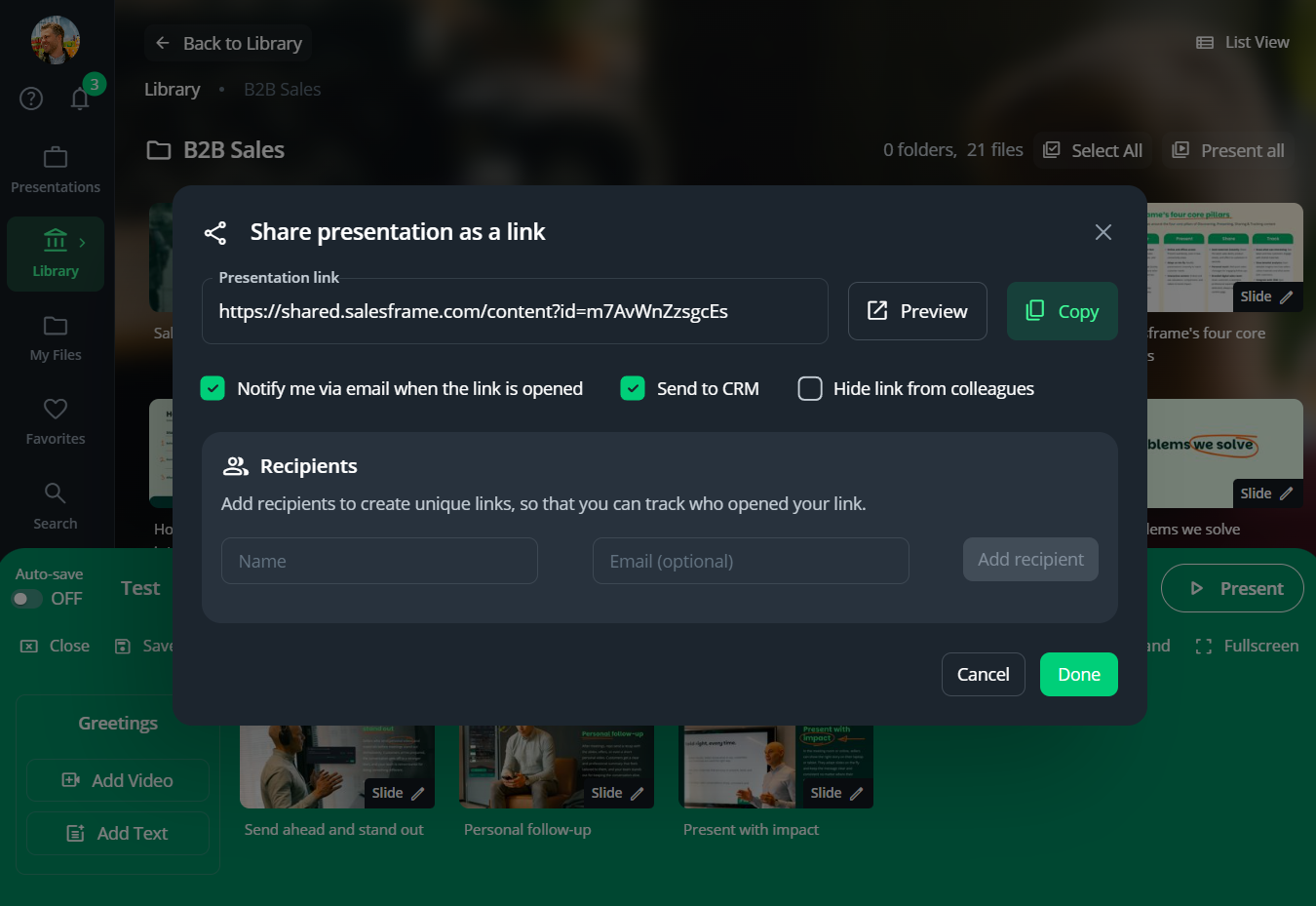
With the deck open, click Share in the bottom toolbar.
Choose Share presentation as a link.
You now have two main ways to share:
Option 1, copy one link and share it yourself
Use Copy to copy the link
Paste it into your own email, WhatsApp, SMS, LinkedIn message or any other channel you prefer
This creates one link that anyone with the link can open.
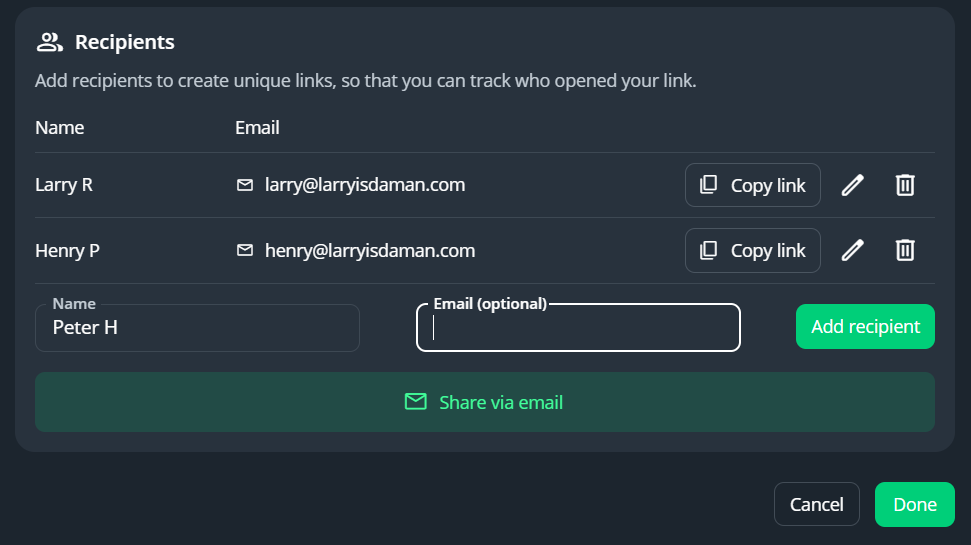
Option 2, add named recipients and let Salesframe send
Under Recipients, add the customer’s name and email address
Click Add recipient for each person you want to send to
Salesframe will send each recipient their own unique link, so you can later see exactly who opened and who did not for this specific presentation.
You can also control a few extra options:
Notify me via email when the link is opened if you want an alert
Send to CRM if your organisation has connected Salesframe to your CRM
Hide link from colleagues if the material is sensitive and should not appear in your team’s shared list of links
Click Done when you are ready. Your customer now has a link to the same slides and files that were in your deck when you clicked Share.