
Managing presentations and tracking customer activity
Once you have started saving and sharing presentations, you will mostly work from the Presentations view. This is where you manage your decks and see what customers have done with the links you sent them.
1 - Open My presentations
Click Presentations in the left sidebar.
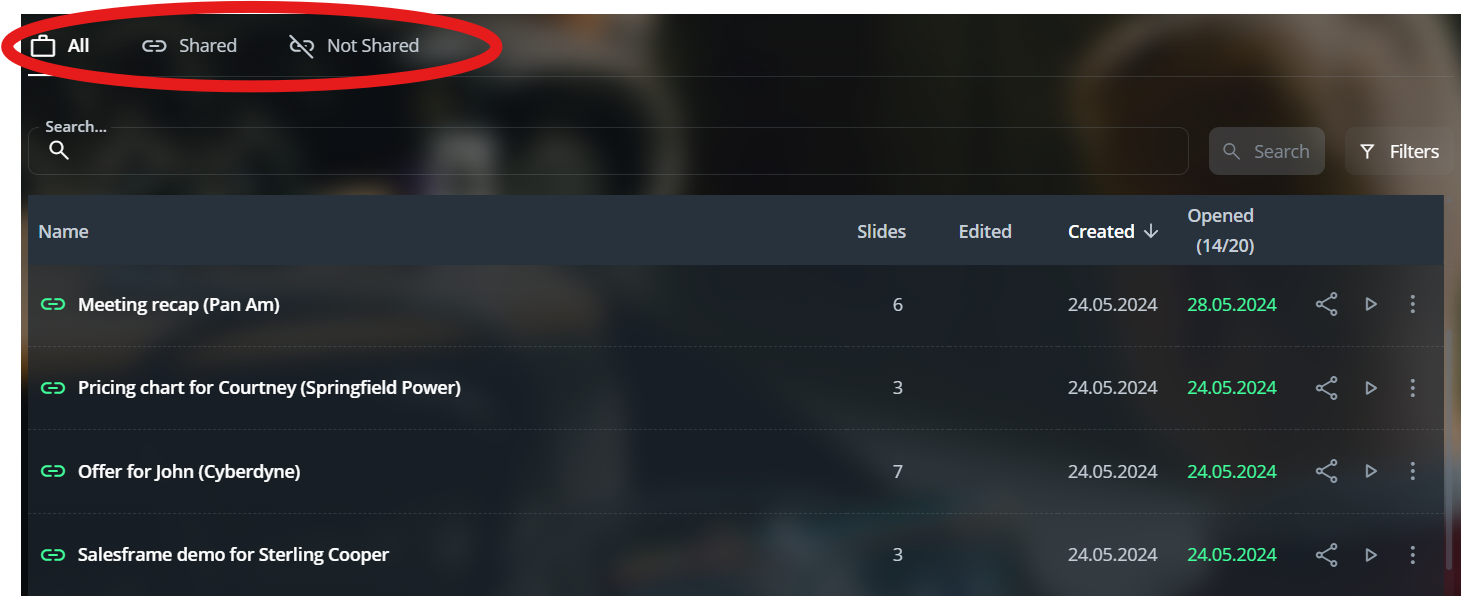
By default you land on the All tab.
Shared shows only presentations that have been shared with customers
Not shared shows drafts that have never been sent out
The link icon next to the name tells you the status
Green link icon = shared with at least one recipient
Grey link icon = not shared yet
You can:
Use Search to find a presentation by its name
Use Filters to adjust what you see
Sort by Created, Edited or Opened date
If your permissions allow it, use Change user to look at presentations sent by another user, for example one of your team members
2 - Manage a presentation from the list
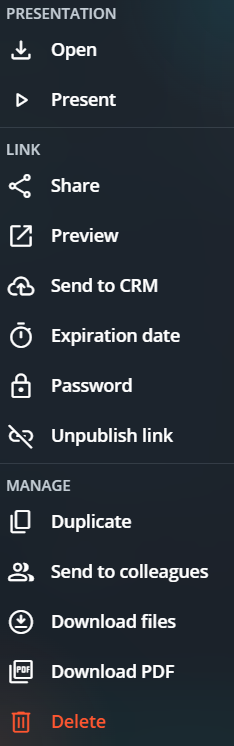
Each presentation on the list has a three dot menu at the right edge. This is your action menu for that presentation.
The menu is grouped into three parts.
Presentation
Open opens the deck in edit mode
Present opens it directly in presentation mode
Link
Share opens the share dialog to send or re-send the link
Preview lets you see the presentation exactly like the customer sees it
Send to CRM logs the shared link to your CRM, if Salesframe is connected
Expiration date lets you add or change an expiry date for the link
Password lets you set or change a password for the link
Unpublish link turns the link off so that it no longer works for customers
Manage
Duplicate creates a copy of the presentation which you can rename and reuse
Send to colleagues shares the deck to other Salesframe users inside your organisation
Download files downloads the files in the deck
Download PDF creates and downloads a PDF version of the deck
Delete removes the presentation from your list
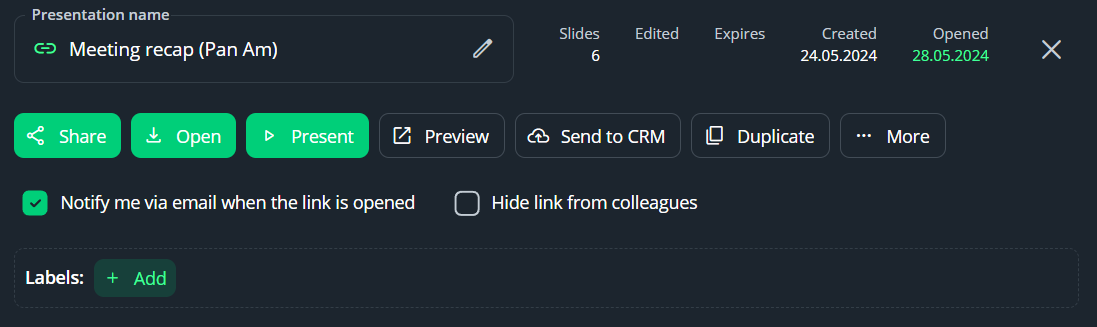
You can also click on a row to open a more detailed view for that presentation.
3 - Viewing presentation details and tracking stats
Clicking a presentation row opens a detailed view with everything in one place.
At the top you see the name, slide count and key dates (Edited, Created, Expires, Opened).
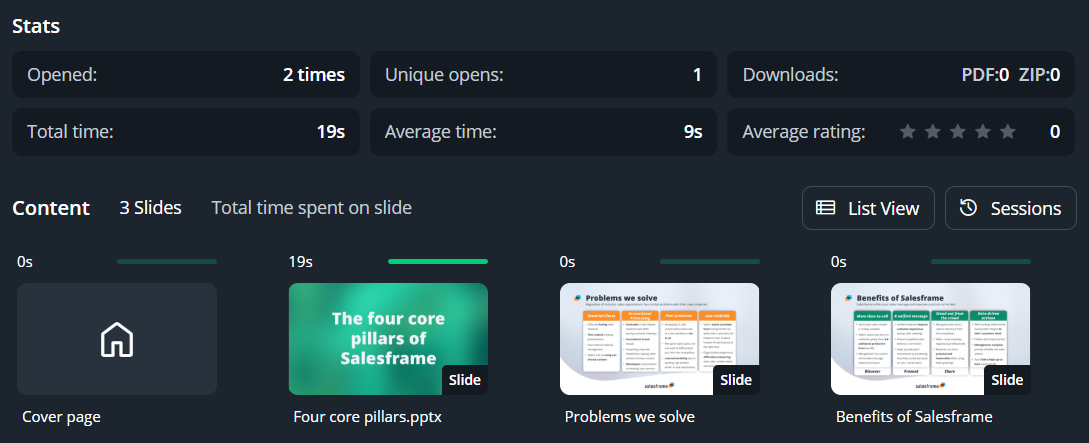
Scroll down to Stats to see how your content has been used.
You will see:
Opened – total number of times the link has been opened
Unique opens – how many individual people have opened it
Downloads – how many times files or the PDF have been downloaded
Total time – total viewing time across all opens
Average time – average viewing time per open
Average rating – if you use ratings
Below that you will see each slide or content item in the deck, with a bar showing total time spent on that slide. This helps you see what caught the customer’s attention and what they skipped past.
You can switch between:
List view, focused on the content items
Sessions, which groups data by visit if you want to see how individual viewing sessions looked
Salesframe will notify you when customers open your shared presentations.
Depending on how you use the product you can get:
Email notifications when a shared link is opened
In-app notifications inside Salesframe
Push notifications in the mobile app if you have it installed
This is useful when customers open material you sent earlier. Many users use that as a natural moment to call the customer and move the discussion forward.
4 - Typical workflows
Here are a few common ways people use My presentations:
Build a new presentation, send it immediately, then follow the stats to see if the customer engaged
Build and present from the same deck in a meeting, then share the link as a recap
Take an older deck, duplicate it for a new customer, tweak the content and send it again
Get a notification that an old link was opened, check the stats to see what slides were viewed and call the customer with that context
Managers with the right permissions use Change user to look at presentations and customer activity for their team members
This view is your hub for everything that happens after you click Share.