
Using My Files for your own content
My Files is the personal storage area inside Salesframe. Regular users manage the content here, not admins.
This is where users can upload their own slides, files and links, keep edited versions of library slides and store customer specific decks that they want to reuse later.
1 - What you see in My Files
Open My Files from the left sidebar.
Every user starts with three default folders:
Added files
The default target for everything uploaded from the presentation deck
A general place for files that might be reused
Video greetings
All video greetings recorded in Salesframe are saved here automatically
Edited slides
Any slides edited with the built in editor are stored here when they are saved
These default folders are fixed and cannot be renamed or deleted. On top of these, regular users can create as many custom folders as they like.
2 - Adding content to My Files
There are two main ways to get content into My Files.
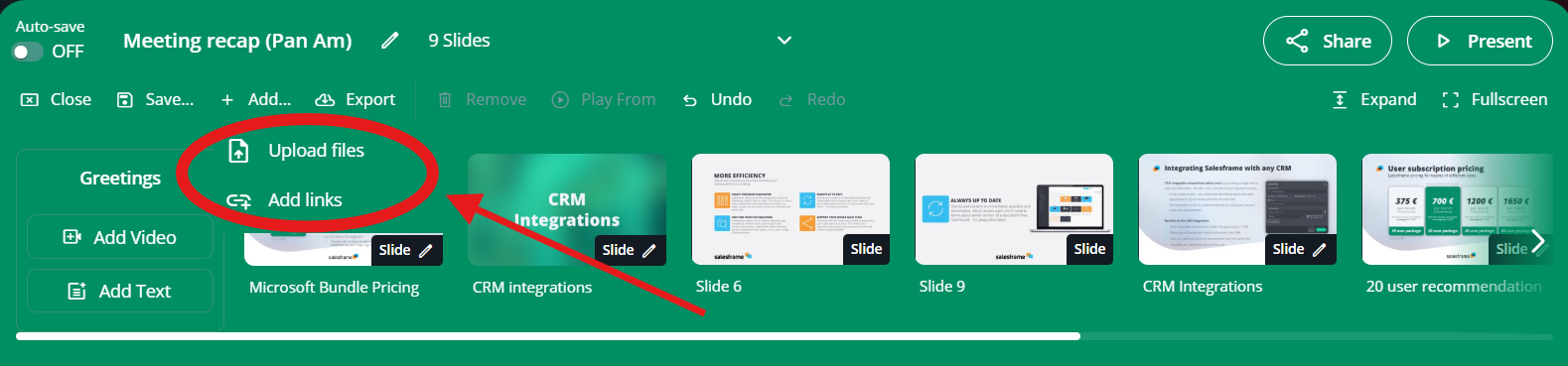
Upload while building a presentation
When working in the presentation deck, users can:
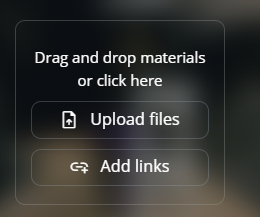
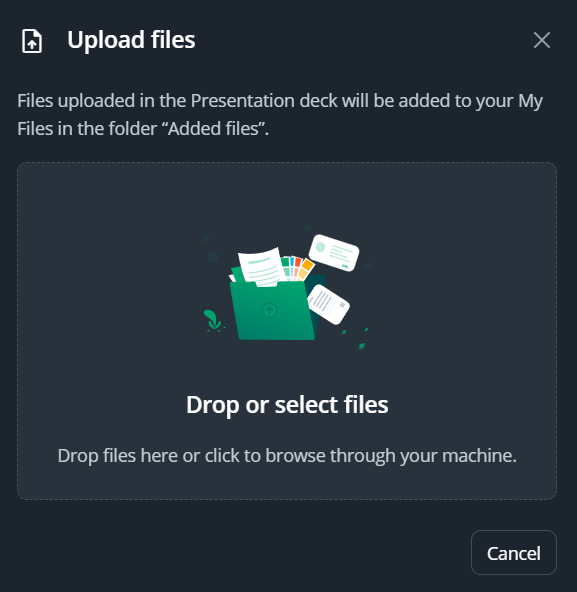
Upload a file from their computer
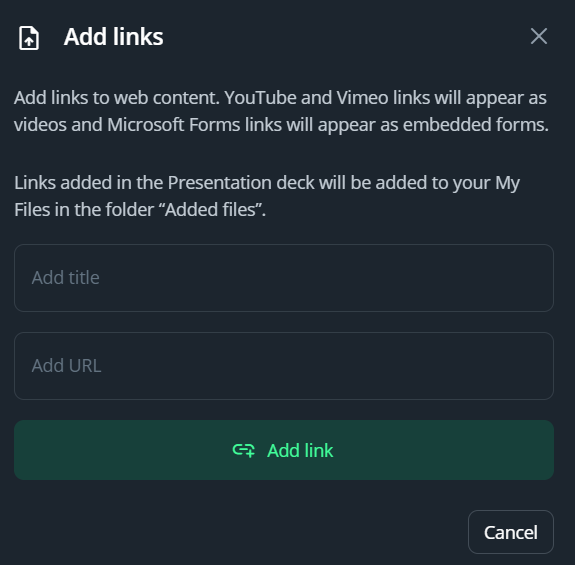
Add an embedded URL, for example a dashboard, website or YouTube video
Everything uploaded this way is automatically stored in Added files inside My Files.
Embedded URLs are stored there as well.
Upload directly inside My Files
Content can also be uploaded straight into My Files:
Open My Files from the sidebar
Stay in an existing folder or create a new one first
Use the upload option to add files from the computer
The same file types are supported as in Library, so slides, PDFs, images, videos and other supported formats can all be kept here.
3 - Using My Files content in a presentation
Content in My Files works just like any Library folder when building a deck.
To use something from My Files:
Open My Files
Go into the folder needed
Either:
Click to select one or more files, then add them to the deck, or
Drag and drop files directly into the deck in the correct position
My Files content can be mixed freely with Library content, saved presentations and embeds in the same deck.
4 - Creating and organising folders
Regular users are free to design their own structure in My Files.
Create a new folder
In My Files, click New folder
Give the folder a clear name, for example
Customer – Pan Am
Local case studies
Q3 campaign slides
Confirm to create it
Move files between folders
To move files into another folder:
Select one or more files in a folder
Drag them onto the target folder in the folder tree on the left
Drop them there
Rename or delete custom folders
For custom folders, users can:
Open the folder and use the three dot menu to
Rename folder
Delete folder
Deleting a custom folder removes it from that user’s My Files. Default folders like Added files, Video greetings and Edited slides cannot be renamed or deleted.
Files in My Files are not automatically sorted by date or name, so organisation is manual. If a specific order is needed, users reorder files and folders themselves.
5 - Sharing My Files folders with colleagues
Sometimes it is useful to let colleagues use the same custom content, for example a customer specific offer deck or a local case study.
To share a My Files folder:
Open My Files
Go into the folder that should be shared
Click the three dots next to the folder name
Choose Share folder and select the users who should have access
What happens when a folder is shared:
The folder appears in the selected colleagues’ My Files view
They have full access to the folder
They can add new files
They can edit and delete files
If someone deletes a file from a shared folder, it disappears for everyone
If the original creator deletes a shared folder from their own My Files, colleagues can still see it on their side. This prevents one user from accidentally removing a shared working folder others rely on.
Shared My Files folders work best as focused working spaces for specific customers or cases, not as a general
6 - Typical ways My Files is used
Here are some common patterns that work well in day-to-day use.
Customer specific offer decks
Create an offer deck in PowerPoint for one customer
Upload the file into a customer specific folder in My Files
Pull the slides needed into the presentation deck when meeting that customer
Duplicate or adjust the deck for the next round and keep everything for that customer together
Personal slides and intros
Create personal intro slides or local examples
Upload them into a Custom slides folder
Mix them into any deck to make presentations feel more tailored
Embeds and videos
Add embedded URLs for dashboards, product pages, internal tools or videos
Store them in a folder such as Embeds and videos
Drop them into a deck whenever live or hosted content should be shown
Some users even add fun YouTube clips, for example a short cat video, to surprise customers
Edited versions of global slides
Use the slide editor to adapt global Library slides for a specific customer
Save them into Edited slides or into a customer specific folder
Reuse those versions when working with the same customer again